Selection and traversal on the DOM tree
In the Anatomy of the DOM guide, we introduced properties for navigating between parents, children, and siblings, but manually walking the tree is verbose and error-prone. The DOM provides methods for directly obtaining the reference to an element in the tree by a unique identifier, a class name, a tag name, a CSS selector, and more. It also provides utility functions for iterating over tree nodes.
Tree traversal: at a high level
The Anatomy of the DOM guide introduces the tree structure of the DOM. The tree has a root, and each node has a (possibly empty) list of children. The document root is a Document node, while Element nodes form the backbone of this tree.

There are many ways to traverse a tree, but the DOM only exposes one order: pre-order DFS, which is called document order or tree order. In pseudo-code, pre-order works like this:
function traverseTree(root, visitor) {
  // Visit the root first
  visitor(root);
  for (const child of root.childNodes) {
    // Recursively visit each child in order
    // Each child subtree is completely visited before moving to the next
    traverseTree(child, visitor);
  }
}
An element precedes its descendants, and earlier siblings and their descendants precede later siblings. For example, in the tree above, the Element nodes listed in tree order are: HTML, HEAD, TITLE, BODY, H1, P.
Selection is just a form of traversal, with the visitor being a boolean function that tells us if we are interested in the element.
function selectTree(root, visitor) {
  // visitor successfully matches the root node; return without going further
  if (visitor(root)) return root;
  for (const child of root.childNodes) {
    const result = selectTree(child, visitor);
    // A result is successfully found within the subtree at child
    if (result !== null) return result;
  }
  // No match found anywhere in the subtree at root
  return null;
}

function selectTreeMulti(root, visitor, collection) {
  if (visitor(root)) collection.push(root);
  for (const child of root.childNodes) {
    selectTreeMulti(child, visitor, collection);
  }
  return collection;
}
Once you understand these, you already understand a big part of DOM selection and traversal. All that remains is how each specialized DOM method defines its visitor function and collection object for you.
Selecting elements by ID, class, or tag name
There are three main ways to identify an element: its id, className, and tagName. The Document interface provides three methods to select by these three identifiers: document.getElementById(), document.getElementsByClassName(), and document.getElementsByTagName(). As the names suggest, getElementById() returns the reference to a single element (or null if no element is found), while getElementsByClassName() and getElementsByTagName() return collections of elements. The collection is a live HTMLCollection; we will discuss this further in Working with collections.
Each element's id should be unique within the document (but shadow DOM are separate documents and therefore have their own scopes). As long as you uphold that requirement in your code, you will always get the element you intend with getElementById(). However, id attributes are used very sparingly because they are hard to be kept globally unique. Therefore, in real applications, you will often find getElementsByClassName() and getElementsByTagName() (or the querying methods we will introduce soon) more practical.
<div id="container"></div>
<div class="profile big"></div>
const containerDiv = document.getElementById("container");
// containerDiv is an HTMLDivElement

const profileDivs = document.getElementsByClassName("profile");
// profileDivs is an HTMLCollection containing an HTMLDivElement

const profileDivs2 = document.getElementsByTagName("div");
// profileDivs2 is an HTMLCollection containing both HTMLDivElements
Some notes worth calling out:
- The
getElementById()method matches IDs case-sensitively. ThegetElementsByClassName()method also matches case-sensitively, except in quirks mode, where matching is ASCII case-insensitive. - In HTML documents,
getElementsByTagName()lowercases the argument when matching HTML elements. Non-HTML elements (e.g., SVG) are still matched case-sensitively. In XML documents, all tag-name matching is case-sensitive. Note that thetagNameof an HTML element in an HTML document is returned in uppercase, but internally it's still stored in lowercase. - The
classattribute's value is a space-separated token list, and you can also specify a space-separated list forgetElementsByClassName(). Thevisitortests for a subset-of relationship: an element is matched if all of these class names are present on the element (extra class names on the element are also allowed). - The
getElementsByTagName()method takes the special"*"value to get all elements (i.e., apply no filtering).
If you are familiar with CSS selectors, these methods are the DOM equivalents of the ID, class, type, and universal selectors:
/* document.getElementById("container") */
#container {
}

/* document.getElementsByClassName("profile") */
.profile {
}

/* document.getElementsByClassName("profile big") */
.profile.big {
}

/* document.getElementsByTagName("div") */
div {
}

/* document.getElementsByTagName("*") */
* {
}
The getElementById() method is also available on DocumentFragment; the getElementsByClassName() and getElementsByTagName() methods are also available on Element. Calling the method on a node sets the search root to that node. The calling root is never matched.
Selecting elements with CSS selectors
You can also directly use CSS selectors to select elements. Two methods are available on Document, DocumentFragment, and Element: document.querySelector() and document.querySelectorAll(). Both methods search descendants, excluding the node on which they are called. The querySelector() method returns the first matching element; the querySelectorAll() method returns all matching elements in a static NodeList. Again, we'll more formally introduce this collection in Working with collections.
The selector methods accept selectors to determine what element or elements should be returned. This includes selector lists so you can group multiple selectors in a single query.
To select all paragraph (p) elements in a document whose classes include warning or note, you can do the following:
const special = document.querySelectorAll("p.warning, p.note");
You can also query by ID. For example:
const el = document.querySelector("#main, #basic, #exclamation");
After executing the above code, el contains the first element in the document whose ID is one of main, basic, or exclamation. The order of selectors in the list does not give one ID priority over another. An element that matches more than one selector appears only once in the result of querySelectorAll().
Pseudo-classes, such as :checked and :first-child, can be used in queries. To protect the user's privacy, some pseudo-classes are not supported or behave differently. For example, :visited will return no matches and :link is treated as :any-link. Only elements can be selected, so pseudo-elements, such as ::before, do not produce matching DOM elements.
The querySelector methods are basically supersets of the previously introduced getElementBy methods. Anything you can implement with the latter, you can achieve similar results with the former:
document.getElementById("container");
// Is equivalent to:
document.querySelector("#container");

document.getElementsByClassName("profile big");
// Is equivalent to:
document.querySelectorAll(".profile.big");

document.getElementsByTagName("div");
// Is equivalent to:
document.querySelectorAll("div");
There are only two things to watch out for:
-
The
getElementsByClassName()andgetElementsByTagName()methods return live collections, whilequerySelectorAll()returns a static collection (see Live and static collections). Usually, the static collection's behavior is what you want. -
The selector string must be valid CSS selector syntax; otherwise, the method throws a
SyntaxErrorDOMException. An HTML ID or class name is not necessarily a valid CSS identifier. UseCSS.escape()when inserting such a value into an ID or class selector:jsconst id = "item:42"; const item = document.querySelector(`#${CSS.escape(id)}`); // document.getElementById(id) needs no escaping.
Calling querySelector() or querySelectorAll() on an element limits the returned elements to its descendants, but the selector is applied in the context of the entire document. For example, given this HTML:
<div>
  <section id="main">
    <p class="note">A direct child.</p>
    <div>
      <p class="note">A nested paragraph.</p>
    </div>
  </section>
</div>
A selector like div p still matches the first note, because this p is indeed nested in a div, although that div is outside of the search root. Use :scope so that the selector is only applied within the search root:
const main = document.getElementById("main");
const allNotes = main.querySelectorAll("div p"); // Both paragraphs
const childNote = main.querySelectorAll(":scope div p"); // Only the second
const childNote2 = main.querySelectorAll(":scope > p"); // Only the first
The Element.matches() method tests if an element matches the selector string, so querySelector() works like the selectTree function with element.matches passed as the visitor function (despite many technical differences).
You can also search up using the Element.closest() method. This tests the element itself, then its parent element, and so on toward the root, until it finds an ancestor element that matches the given selector.
Using the same HTML:
const innerNote = document.querySelector("#main div p.note");
console.log(innerNote.closest("section").id); // "main"
Working with collections
We already introduced two types of collections: live HTMLCollection as returned by getElementsByClassName() and getElementsByTagName(), and static NodeList as returned by querySelectorAll(). A NodeList can contain any type of node, while an HTMLCollection contains only elements (but the elements don't actually have to be HTML elements). You are perhaps already familiar with the Node.childNodes property, which is also a NodeList. The NodeList returned by querySelectorAll() contains only elements because that method selects elements.
Both interfaces are array-like, meaning that they have a length property and support indexed access. They also support iteration.
const paragraphs = document.querySelectorAll("p");
console.log(paragraphs.length);
console.log(paragraphs[0]);

for (const para of paragraphs) {
  // ...
}
However, they are not real Array objects, so they lack methods like Array.prototype.map(). If you need these methods, you can convert them to arrays, using spread syntax or Array.from():
const paragraphs = [...document.querySelectorAll("p")];
const paragraphs2 = Array.from(document.querySelectorAll("p"));

const texts = paragraphs.map((p) => p.textContent);
The NodeList and HTMLCollection interfaces, along with many other array-like interfaces on the web, were an attempt to create an unmodifiable list. They don't provide any way to modify them, and modifying the converted arrays does not affect the original list.
HTMLCollection is not just a list; it's also a key-value map that allows lookup by the elements' ID or HTML elements' name. You can either use namedItem() or directly access them as properties (as long as they don't collide with existing property names of the HTMLCollection).
const sections = document.getElementsByTagName("section");
const main = sections.namedItem("main");
const main2 = sections["main"];
The interfaces provide some additional convenience methods:
- Both interfaces provide an
item()method, which works like indexed access. The main difference is that it returnsnullwhen the index is out of range, whereas indexed access returnsundefined; it also applies different input conversion rules. NodeListprovidesforEach(),entries(),keys(), andvalues(). They work in the exact same way as theArraymethods, so if you just need these methods, you don't have to convert it to anArray.
Live and static collections
The HTMLCollection objects returned by getElementsByTagName() and getElementsByClassName() are live. Essentially, the collection doesn't store anything upfront; it just remembers the root element and the query. When you actually try to retrieve its length or an element in it, the collection then performs the actual traversal on the current DOM tree. (This may work differently in a real browser due to optimizations.) Therefore, if you save the collection and then update the DOM tree, the collection now reflects the latest DOM tree.
const container = document.createElement("div");
const paragraph = document.createElement("p");
paragraph.className = "note";
container.append(paragraph);

const liveList = container.getElementsByClassName("note");
console.log(liveList.length); // 1

paragraph.classList.remove("note");
console.log(liveList.length); // 0
On the other hand, the NodeList object returned by querySelectorAll() is static, meaning that it's a snapshot of the tree's state at the time of the method call. A static list preserves its membership, not the state of the nodes: it still refers to the original node objects.
const container = document.createElement("div");
const paragraph = document.createElement("p");
paragraph.className = "note";
container.append(paragraph);

const staticList = container.querySelectorAll(".note");
console.log(staticList.length); // 1

paragraph.classList.remove("note");
console.log(staticList.length); // 1
console.log(staticList[0].className); // ""
Usually, a static list is what you want. You almost always want to convert the collections to arrays anyway to use the array methods, at which point the collection is no longer live. Also, if you change a live collection while iterating over it, its indices and length can change, creating unintended concurrent modifications:
const notes = document.getElementsByClassName("note");
for (const note of notes) {
  // This simultaneously removes this element from the collection, shifting
  // all later elements, so the next iteration doesn't visit the next element
  note.classList.remove("note");
}
To fix this, iterate over a snapshot, such as an array created with Array.from(notes) or a static list obtained with querySelectorAll(".note"). Alternatively, defer mutations that change the collection's membership or order until after iteration. You can still keep a reference to the live collection to observe later updates.
Traversing nodes
Selector methods can be used to iterate over elements, like this:
for (const descendant of element.querySelectorAll("*")) {
  // Visit every single descendant element in this subtree
}
However, this is quite limited: you cannot visit non-elements like text or comments, and you cannot avoid visiting a particular subtree without writing complicated selectors. The DOM provides two interfaces for general traversal: NodeIterator and TreeWalker. Create these objects using document.createNodeIterator() or document.createTreeWalker(). Both methods take the same three arguments:
root: The node at which the traversal is rooted.whatToShowOptional: Specifies which node types to return. A node that's not shown can still have descendants that are shown. It defaults toNodeFilter.SHOW_ALL.filterOptional: A function, or an object with anacceptNode(node)method. The function can decide if a node should be skipped, and if so, whether its descendants should be skipped too (only forTreeWalker). It defaults tonull, meaning no additional filtering.
Both objects expose these settings through their read-only root, whatToShow, and filter properties.
The NodeFilter interface provides constants for whatToShow.
| Constant | Shown nodes |
|---|---|
NodeFilter.SHOW_ALL |
All |
NodeFilter.SHOW_ATTRIBUTE |
Attr |
NodeFilter.SHOW_CDATA_SECTION |
CDATASection |
NodeFilter.SHOW_COMMENT |
Comment |
NodeFilter.SHOW_DOCUMENT |
Document |
NodeFilter.SHOW_DOCUMENT_FRAGMENT |
DocumentFragment |
NodeFilter.SHOW_DOCUMENT_TYPE |
DocumentType |
NodeFilter.SHOW_ELEMENT |
Element |
NodeFilter.SHOW_PROCESSING_INSTRUCTION |
ProcessingInstruction |
NodeFilter.SHOW_TEXT |
Text |
Note:
The NodeFilter.SHOW_ATTRIBUTE constant is only effective when the root is an attribute node. Since the parent of any Attr node is
always null, TreeWalker.nextNode() and TreeWalker.previousNode() will never return an Attr node. To
traverse Attr nodes, use Element.attributes instead.
All these constants are bitmasks, so you can combine constants with the bitwise OR operator (|) to include multiple node types, such as NodeFilter.SHOW_ELEMENT | NodeFilter.SHOW_TEXT to include both element and text nodes.
A node that doesn't pass whatToShow is never passed to the filter function. However, it may still have descendants that are visited.
The filter function (or its acceptNode() method) is called when traversal evaluates a candidate node whose type matches whatToShow. Descendants of a rejected TreeWalker subtree may never reach the filter. The filter must return one of these constants:
NodeFilter.FILTER_ACCEPT: causes the node to be actually returned.NodeFilter.FILTER_SKIP: causes the node to be skipped, but its descendants are still considered.NodeFilter.FILTER_REJECT: forTreeWalker, causes the node and all its descendants to be skipped; forNodeIterator, behaves likeFILTER_SKIP.
For example, the following iterates over all non-whitespace text nodes:
const iterator = document.createNodeIterator(
  document.body,
  NodeFilter.SHOW_TEXT,
  (node) =>
    node.data.trim() ? NodeFilter.FILTER_ACCEPT : NodeFilter.FILTER_SKIP,
);
Iterating in tree order with NodeIterator
A NodeIterator visits nodes in tree order with nextNode() and in reverse tree order with previousNode(). Each call returns a node accepted by the filter, or null if there is no such node in that direction.
Continuing the preceding example, you can continuously move forward in tree order and log each text node:
let node;
while ((node = iterator.nextNode())) {
  console.log(node.data);
}
Abstractly, NodeIterator works as if it keeps a list of nodes that passed the filter, sorted in tree order (it doesn't actually store that). The iterator tracks a position immediately between two nodes in that list, exposed as referenceNode and pointerBeforeReferenceNode. The nextNode() method returns the node immediately to the right of that position, while previousNode() returns the node immediately to its left. Initially, referenceNode is the root and pointerBeforeReferenceNode is true, so the first call to nextNode() returns the root if it passes the filters, while the first call to previousNode() returns null because there's nothing to the left. After a successful nextNode() call, the referenceNode is the returned node and pointerBeforeReferenceNode is false; vice versa for previousNode(). Consequently, reversing direction returns the same node again if it still passes the filters.
Navigating the filtered tree with TreeWalker
NodeIterator exposes the filtered nodes as a linear collection, which is convenient for iteration but does not preserve the tree structure. A TreeWalker lets you navigate the relationships between nodes in a filtered view of the tree.
Abstractly, TreeWalker works as if it keeps a tree of nodes that passed the filter, such that for every node in the filtered view, its direct children are its descendants on the original tree if there's no intervening node that also passes the filter. Remember that NodeFilter.FILTER_SKIP skips a node but allows its descendants, while NodeFilter.FILTER_REJECT skips a node and all its descendants.
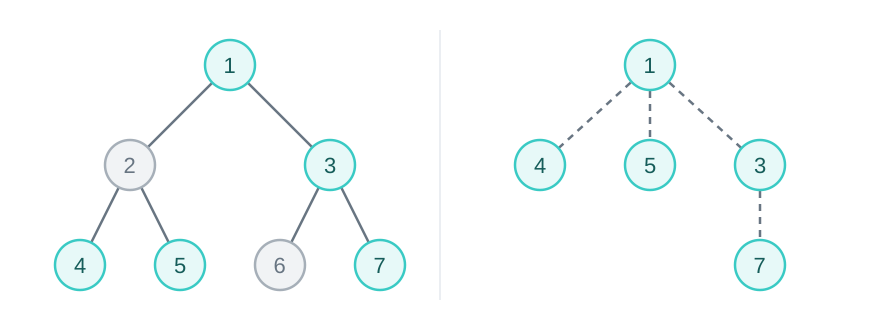
Its currentNode property starts at the root, even if the root does not pass the filters. Unlike a NodeIterator, calling nextNode() starts searching after this current node, so the root itself is never returned on the first call.
The following methods move currentNode around the filtered view. If no such node is found, they return null and leave currentNode unchanged: parentNode(), firstChild(), lastChild(), previousSibling(), nextSibling().
Note that the filtered view might not be a single tree if the root does not pass the filter. Use previousNode() and nextNode() to find the previous/next passing node in tree order, which may belong to a different filtered tree. These methods also return null and leave currentNode unchanged if no such node is found.
Unlike an iterator's referenceNode, currentNode is writable. You can save it and assign it back later, or reset the walker to its root with walker.currentNode = walker.root. Assignment does not apply the filters or check that the node is within the root's subtree, so keep it within that subtree when you want traversal to remain there.
For example, given this HTML:
<article id="article">
  <p>Read <strong>this</strong> paragraph.</p>
  <aside data-skip><p>Ignore this note.</p></aside>
  <p>Read this paragraph too.</p>
</article>
This walker collects non-whitespace text nodes while excluding subtrees marked with data-skip:
const article = document.getElementById("article");
const walker = document.createTreeWalker(
  article,
  NodeFilter.SHOW_ELEMENT | NodeFilter.SHOW_TEXT,
  (node) => {
    if (node.nodeType === Node.ELEMENT_NODE) {
      return node.hasAttribute("data-skip")
        ? NodeFilter.FILTER_REJECT
        : NodeFilter.FILTER_SKIP;
    }
    return node.data.trim() ? NodeFilter.FILTER_ACCEPT : NodeFilter.FILTER_SKIP;
  },
);

const parts = [];
let node;
while ((node = walker.nextNode())) {
  parts.push(node.data);
}
console.log(parts.join(""));
// "Read this paragraph.Read this paragraph too."
SHOW_ELEMENT is necessary even though we only collect text, because it lets the filter inspect and reject elements with data-skip. With only SHOW_TEXT, those elements would be skipped before the filter gets called, and their text would still be visited. Because NodeIterator has no concept of the tree structure, there's no way to exclude entire subtrees.
Summary
Here are all the features useful for selecting elements in the DOM tree or traversing the nodes:
- To select elements by ID, class, or tag name:
getElementById()(also available onDocumentFragment),getElementsByClassName(), andgetElementsByTagName()(both also available onElement). - To select elements with CSS selectors:
querySelector()for the first match, orquerySelectorAll()for all matches. Both also available onDocumentFragmentandElement. - To test an element or search its ancestors:
matches()andclosest(). - The
NodeListandHTMLCollectioninterfaces are array-like collections of nodes/elements providinglength, indexed access, iteration, anditem().NodeListalso providesforEach(),entries(),keys(), andvalues().HTMLCollectionprovidesnamedItem()and named property access. document.createNodeIterator()creates aNodeIteratorthat traverses nodes sequentially, using itsnextNode()/previousNode()methods. Its position is exposed throughreferenceNodeandpointerBeforeReferenceNode.document.createTreeWalker()creates aTreeWalkerthat traverses nodes in the filtered tree view, using itsparentNode(),firstChild()/lastChild(),previousSibling()/nextSibling(), andpreviousNode()/nextNode()methods. Its position is exposed throughcurrentNode.- The
NodeFilter.SHOW_*bitmasks select node types, and a filter function oracceptNode()method returnsFILTER_ACCEPT,FILTER_SKIP, orFILTER_REJECT. OnlyTreeWalkerusesFILTER_REJECTto prune subtrees.